If you forgot your password on a Windows 10 PC and you cannot reset it using Microsoft’s typical processes, you can use this moderately straightforward routine.
The idea is to replace the EASE OF ACCESS program (designed to help people with a disability) with the CMD.EXE and then use that to create a new account.
The details are:

- Boot off a Windows 10 DVD (or USB)
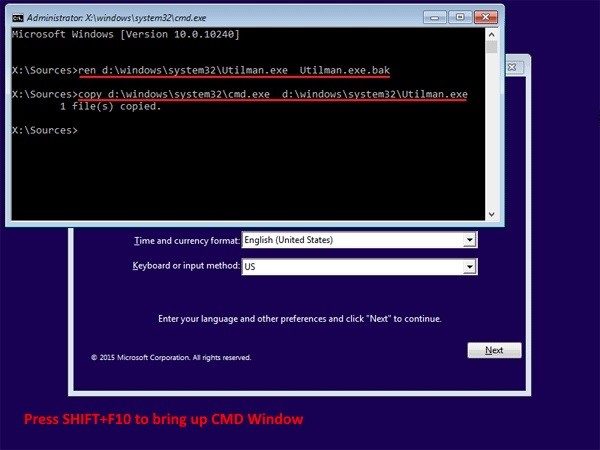
- When the WINDOWS SETUP screen appears, press SHIFT+F10 to launch a CMD window
- Type ren d:\windows\system32\utilman.exe utilman.exe.bak and press the ENTER key
- Type copy d:\windows\system32\cmd.exe d:\windows\system32\utilman.exe and press the ENTER key
- Exit the Windows 10 setup (just power down)
- Boot normally to your hard drive
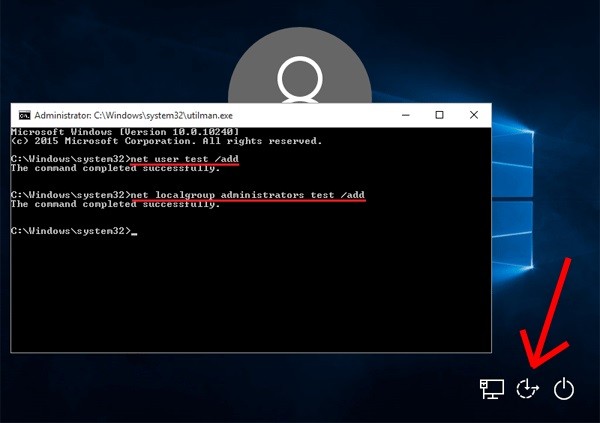
- At the Login Screen click the EASE OF ACCESS icon (beside the Power icon in the bottom right corner of the screen). Because of step 4, this will launch a CMD window

- Type net user test /add and press the ENTER key
- Type net localgroup administrators test /add and press the ENTER key
- Press ALT+F4 to close the CMD prompt
- Click the Power icon (bottom right corner of the screen) and select RESTART
- Sign in as TEST without a password
This created a local administrator named TEST. If you are on a domain use the username .\test and no password.
At this point you are a full local admin, so you can reset any local account password or access any file on the machine. If you logged in with a Microsoft Account or a Domain account, you will not be able to reset the users password but you will have full access to the files so you are not stuck.
A longer, prettier version of this is available at chntpw.com/reset-forgotten-windows-10-password .